 TabularyGuidesInstall
Export your saved Tabulary collections
Checked 13 October 2026
A file export gives you a copy you can keep yourself, without an account or cloud backup. It stores saved links, not offline copies of websites.
Save a copy
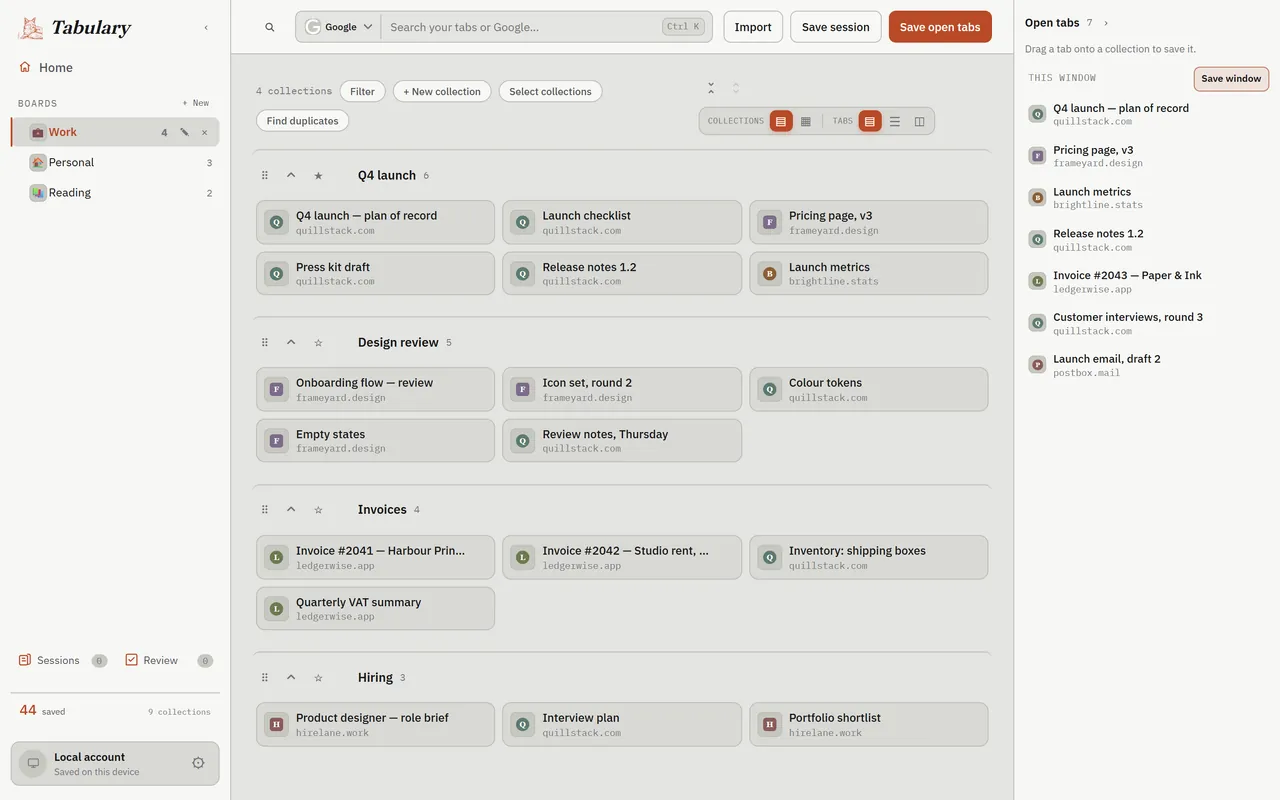
- Open Tabulary’s library, then Settings → Export.
- Check the boards and collections you want. Everything starts selected; Select all and Select none help you narrow it.
- Press Export selected and keep the downloaded
.jsonfile in a folder you can find. - Keep the filename and date together so you know which copy you are restoring.
The export includes the selected boards, collections, tabs and tags, plus saved Sessions, Live Collection rules and Home shortcuts. Settings and a Home background photo are not included. Treat this file as private: it contains the titles and URLs you saved.
Check the copy
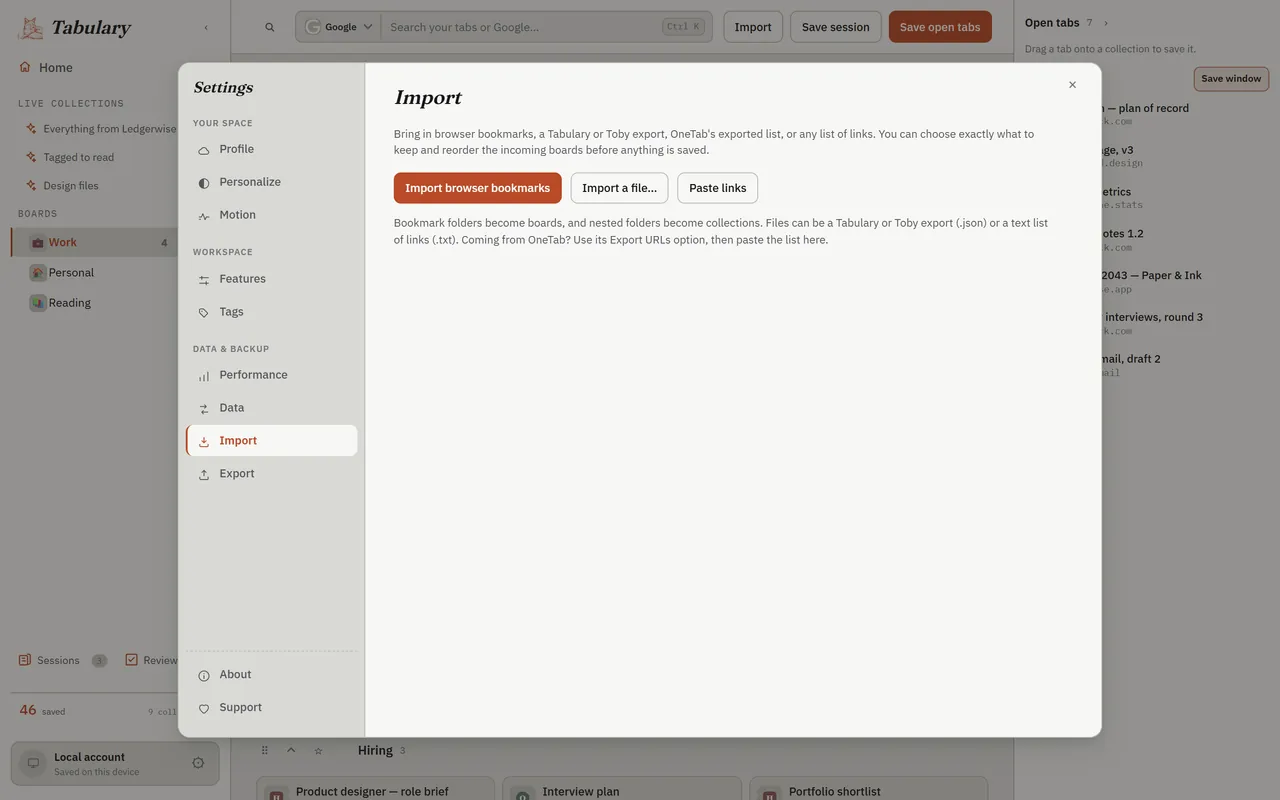
- Open Settings → Import → Import a file… and choose your JSON file.
- Inspect the preview and any skipped-item report. Cancel if you are only checking; a preview does not add anything to your library.
- To restore, select what you want and press Import selected. Check a collection and open a saved link afterwards.
Troubleshooting
The export button is disabled: select at least one collection. An empty library has no collections to export.
You cannot find the file: check your browser’s Downloads list and the destination folder; allow the download if your browser prompts.
Import does not look right: cancel, keep the original file, and report the file format and error message through the help form. Do not include private saved links in a public report.
Full import and export reference · More guides · Install Tabulary