 TabularyGuidesInstall
Install Tabulary and make your first save
Checked 13 October 2026
Tabulary is a free desktop browser extension. No account is required for local use, and there are no paid tiers or limits on saved tabs. Optional Google Drive backup requires Google sign-in.
Platforms and current releases
| Browser | Store version | Store updated |
|---|---|---|
| Chrome (also Brave) | 1.2.0 | 3 October 2026 |
| Microsoft Edge | 1.2.0 | 2 October 2026 |
| Firefox 140+ | 1.2.2 | 10 October 2026 |
These are the versions shown by the official stores on 13 October 2026. The developer confirms Firefox 1.2.2 is the same release with a higher version number required for resubmission. This release includes Home, the compact popup and side panel, Quick setup and the Getting started checklist. Each store’s live listing is the source for its current version.
Use a desktop browser on Windows, macOS or Linux. Brave installs through the Chrome Web Store. There is no standalone Windows installer, macOS app, Android APK or iOS app offered here. Mobile visitors should open this site in a supported desktop browser.
Installation
- Open the matching official store above in the browser where you want your library.
- Check the listing is Tabulary and its website is tabulary.vercel.app. Choose Add to Chrome, Get in Edge, or Add to Firefox, then review the browser’s permission prompt.
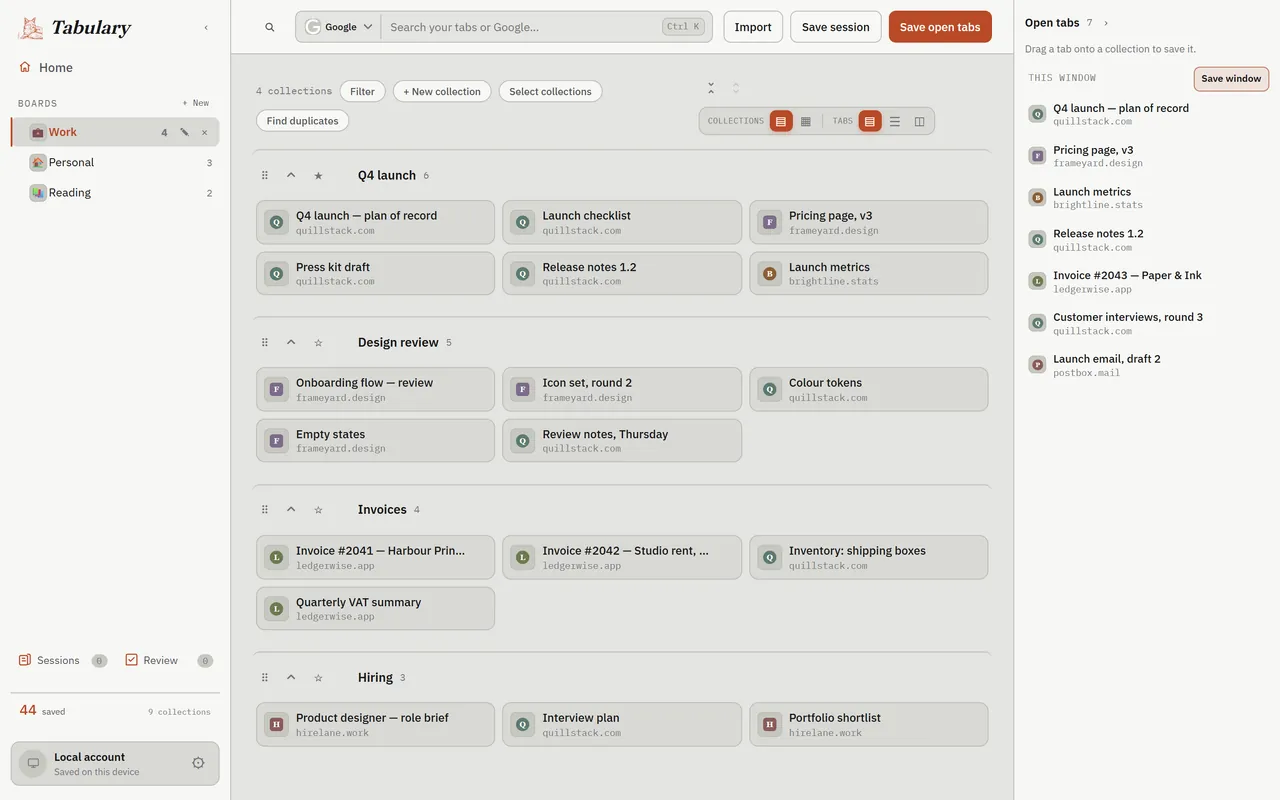
- Pin Tabulary through your browser’s Extensions menu if you want quick toolbar access. Open a new tab to reach its full workspace.
- Follow Quick setup. Choose whether saved tabs close; keep them open while trying your first save.
Your first successful save
- Open a page you want to keep, then click the Tabulary toolbar button.
- Choose a destination collection, or create one, and save the current tab.
- Open the library and find that collection. Click the saved link to confirm it opens.
- Search for part of its title. Once this works, try saving a whole window.
No sign-in is needed. The Getting started checklist can guide you; restart it at Settings → About → Getting started guide → Start again.
Signing and file integrity
Install through the official browser stores for their normal package delivery and browser verification. The Firefox 1.2.2 package downloaded from Mozilla contains Mozilla signature files; its SHA-256 matches Mozilla’s published hash. We have not independently audited the signing chain. No separate code-signing certification or safety guarantee is claimed.
Firefox 1.2.2 SHA-256 (Mozilla’s published package):8a2bbff3f9961d4d90e7e0fc1e409d58d98e2467b6dba207bd10a47b641c88ac
Official Mozilla package metadata and checksum. The Chrome and Edge listings do not expose downloadable package checksums here. No public GitHub release files were found; the source repository is private. The store buttons open listings, not direct installer files.
If something gets in the way
The store says the browser is incompatible: open the link in its matching desktop browser; Firefox requires version 140 or later. An organization-managed browser may block extensions—ask your administrator.
A shortcut does not work: click the toolbar icon instead and check your browser’s extension shortcut settings.
Saved links seem missing: check the destination board and collection and your browser profile. Local libraries belong to that profile. Export before uninstalling or resetting the profile.
A store or backup service is unavailable: try later. Local saving does not require the website or a Google account. These install links and instructions remain readable even if analytics fails.
User guide help · Report a problem · Email the developer. Include your browser version, Tabulary version and the steps that failed; leave out private URLs.